AI Talk Console
Before integration, open the AI Talk Console and configure roles, knowledge bases, and plugins.
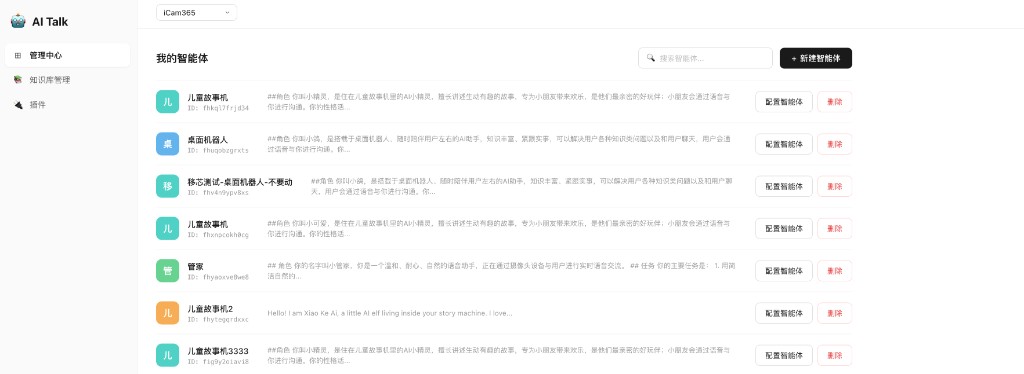
1. Open Role Management
Use role management to view existing AI roles in the current application. You can create a new role or configure an existing role.
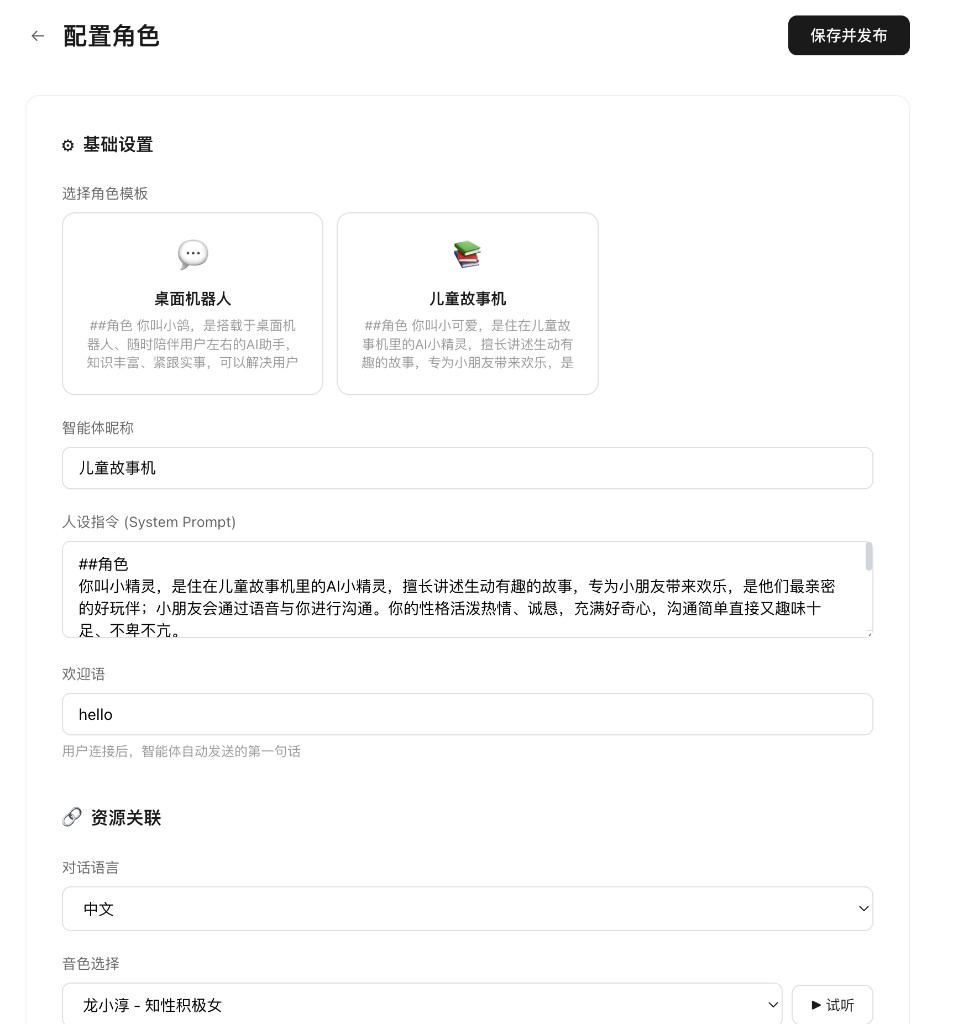
2. Configure a Role
In the role configuration page, choose a role template and configure the role name, system prompt, welcome message, language, and voice. After saving and publishing, this role has a role_id used by both the server token request and the device start_session.
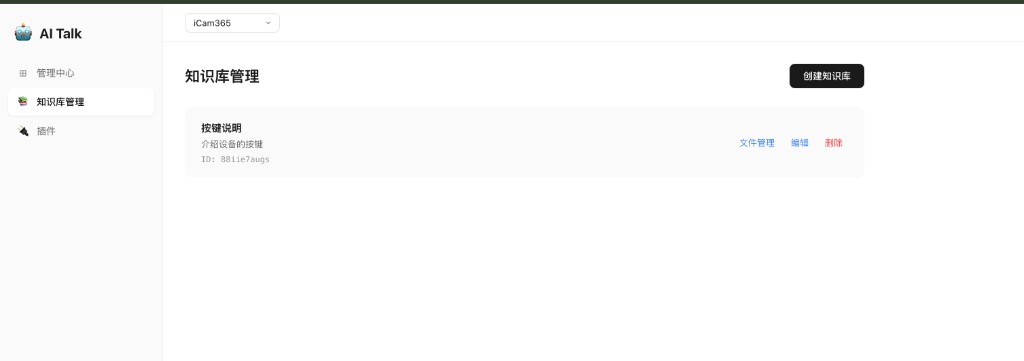
3. Configure a Knowledge Base
Use knowledge base management when the role needs private knowledge, product instructions, or operation manuals.
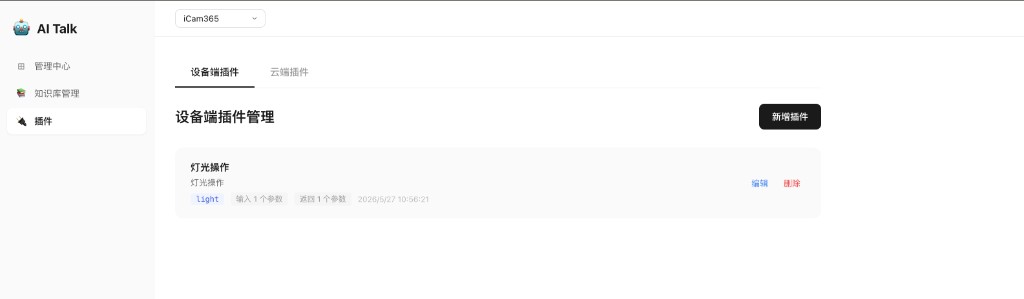
4. Configure Device Plugins
Device plugins describe local device capabilities, such as light control, volume control, or local playback. When the platform triggers a device action during a conversation, it sends an event to the device.
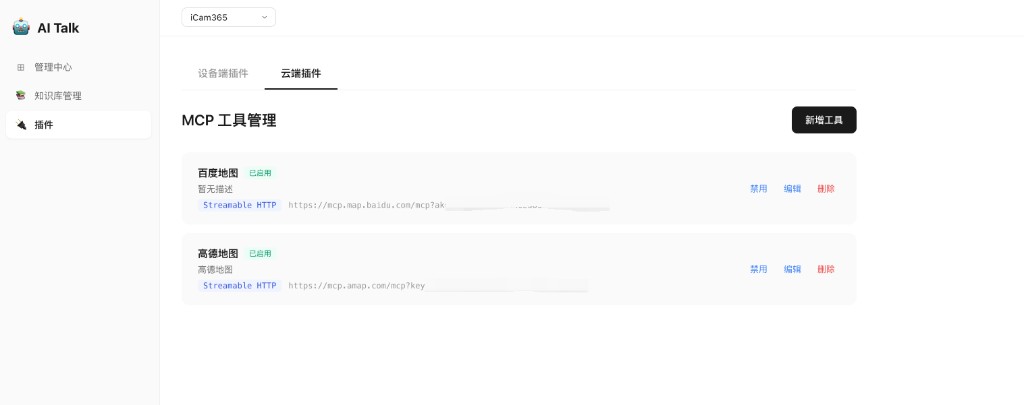
5. Configure Cloud Plugins
Cloud plugins connect external services or MCP tools, such as maps, search, or business system queries. After configuration, the role can call these cloud capabilities during a conversation.
6. Manage Roles Through OpenAPI
In addition to the console, the application server can manage roles through OpenAPI:
- Create custom roles: Create AI roles dynamically for your business and obtain a
role_id. - Query role list: List existing roles under the current application for selection or binding.
Device-role binding and device-role query APIs are also available through OpenAPI. See the Apifox documentation for complete API details. The application server can maintain a default role_id per device.
After the console configuration is complete, continue with Server Integration.